
Due to the popularity of AI-generated videos, someone turned Big Brother and Sister into some interesting AI videos. So Sister posted a Binance AI competition titled 'Six Major Sects Assault Bright Peak' on Twitter yesterday, and many people were unclear about how to make this video. This Seedance 2.0 tutorial can help everyone master the techniques of using 2.0 faster and more easily.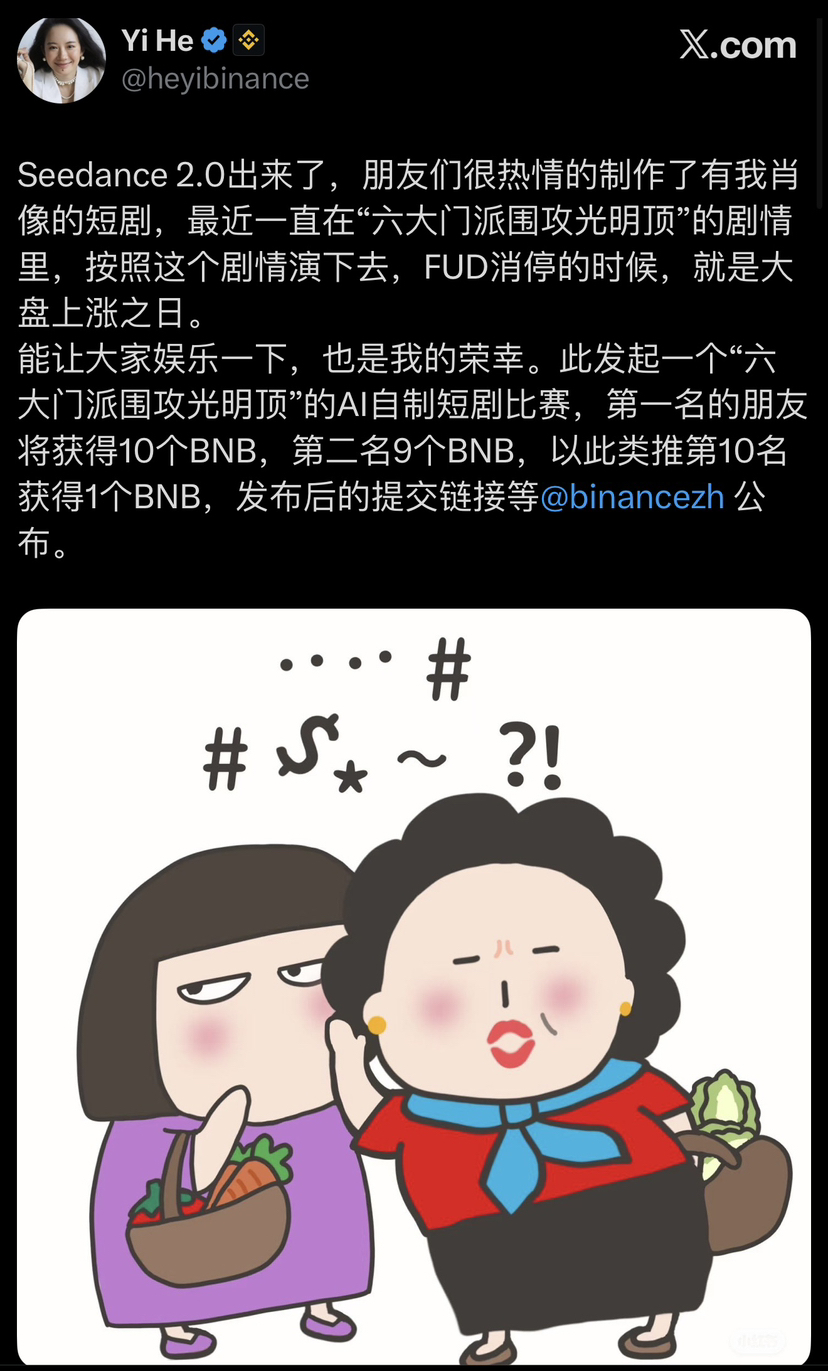
Seedance 2.0 is the second Chinese AI tool following DeepSeek, which became popular all over the internet. It is a new generation of multimodal video generation model launched by ByteDance's Dream AI platform, officially released on February 9, 2026. It supports full-modal input including text, images, videos, and audio, capable of generating 5-12 second cinematic-level videos. Its core advantages lie in multi-shot consistency, precise lip-sync matching, and physical simulation restoration, significantly lowering the threshold for video creation.
One, platform entry and access methods
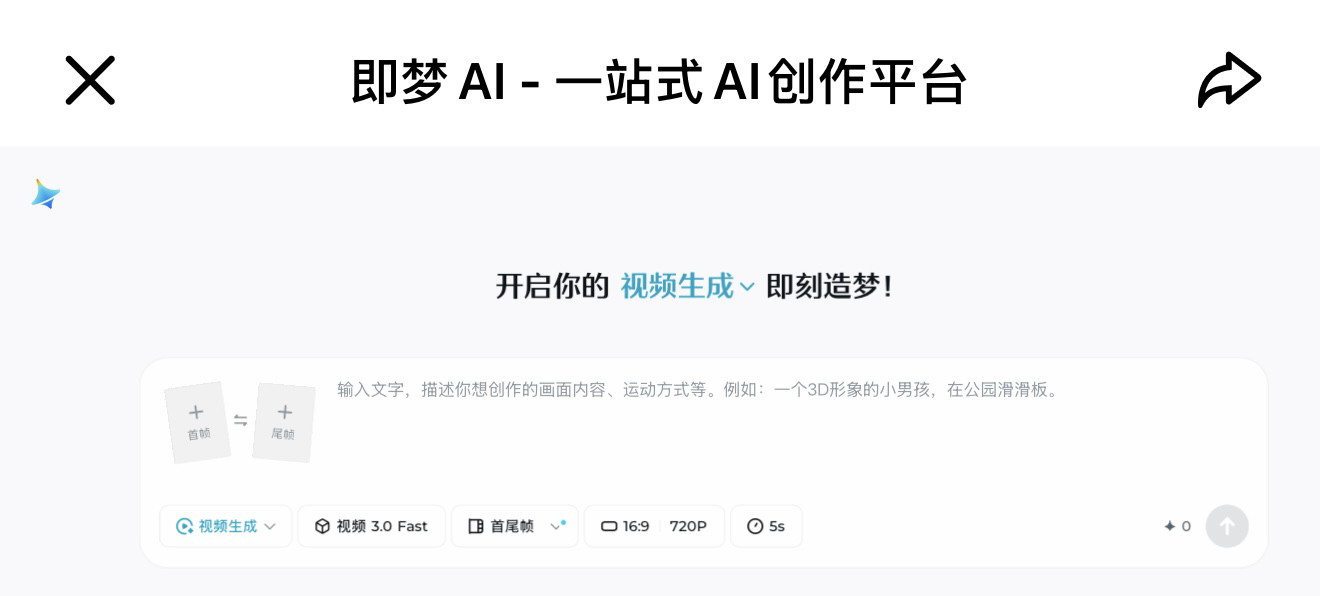
1. Official entry: Dream AI platform (https://jimeng.jianying.com/ai-tool/home?type=video), supports desktop and mobile access
2. Other channels:
CapCut Pro version has been partially integrated
Little Lark platform: New users are given 3 free generation opportunities, 120 points daily
3. Usage rights:
Members (starting from 69 yuan) can directly switch to Seedance 2.0 model
Non-member: In grayscale testing, some users can experience basic functions
Two, registration and login
1. Open the Dream AI platform, log in using your ByteDance account (available for Douyin/Jianying accounts)
2. Complete real-name authentication (some functions require real-name authentication to use)
3. Enter the AI video creation page, select "Immersive short film" mode (Seedance 2.0 core entry)
Three, core function overview
Text-to-video (T2V): Generate video from pure text descriptions, supporting lens movement and light-shadow detail descriptions
Image-to-video (I2V): Upload single image/initial and final frames/multiple image references, control the content and style of the video
Audio-driven: Upload audio to automatically generate lip sync visuals, supporting speech and music-driven
Multi-modal fusion: Upload 9 images + 3 video segments + 3 audio segments as references, total limit of 12 files
Character consistency: After establishing character profiles, maintain facial features, hairstyle, and accessories completely consistent across shots
High-definition output: Supports native resolution of 1080p, some member features can generate 2K videos
Four, basic operation steps (must learn for beginners)
4.1 Text-to-video (zero-based entry)
1. Enter the creation page, select "Text-to-Video" mode
2. Input prompt words (key step): For example:
Scene: Rainy city street, neon lights flashing
Subject: A man in a black trench coat walking with a red umbrella
Shot: Slowly zoom in from a long shot to a close-up of the face, raindrop effects
Atmosphere: Melancholic film feel, cool tones, background slightly blurred
Tip: Include scene + subject + action + lens + atmosphere for the best effect
3. Parameter settings:
Aspect ratio: 16:9 (landscape)/9:16 (portrait)/1:1 (square), adaptable to different platforms
Style: Realistic/Film/Animation/Cyberpunk/Inkwash etc.
Duration: 5-12 seconds, it is recommended that beginners start with 8 seconds
Resolution: 1080p (default)/2K (member exclusive)
4. Click "Generate" button, wait 30-90 seconds (depending on complexity)
5. Preview effect, can "regenerate" or "download" MP4 file
4.2 Image-to-video (precise frame control)
1. Select "Image-to-Video" mode, enter the material upload area
2. Upload reference images (three ways):
Single image reference: Control overall style and subject
First and last frame mode: Upload the first and last frames, the model automatically generates intermediate transition actions
Multi-image reference: Up to 9 images, use @image1, @image2 in prompt words to specify usage
3. Input prompt words, clearly describe the relationship between images and videos: for example: A girl slowly runs from @image1 (starting posture) to @image2 (arms spread), sea breeze blowing through her hair, golden sunset background, slow-motion push and pull, character features consistent with reference images
4. Parameter settings and generation steps are the same as text-to-video
4.3 Audio-driven video (lip sync tool)
1. Select "Audio-driven" mode, upload audio files (MP3 format, ≤15 seconds)
2. Upload character reference images (optional, to improve facial consistency)
3. Input prompt words, emphasize lip sync: For example:
A boy explains AI knowledge, expressions natural, lip sync completely matches @audio1, background is a tech-styled study, camera fixed on a front close-up
4. Enable "lip sync" feature, choose style and duration
5. Check lip sync effect after generation, adjust audio or prompts and regenerate if necessary
Five, advanced usage: Multi-modal creation techniques
5.1 Multi-material fusion (professional level control)
1. Upload images (character settings), videos (camera movement references), and audio (background music) simultaneously
2. Use @ symbol in prompt words to link materials
3. Prioritize uploading materials that have the most impact on the visuals, avoid exceeding the 12-file limit
5.2 Advanced prompt techniques (enhancing output quality)
1. Camera language description: Use professional terms or plain language to describe camera movement, such as "surround shooting" "low-angle shot" "slow push"
2. Action continuity: Continuous actions with transition descriptions, such as "the character transitions smoothly from jumping to rolling"
3. Detail control: Add light-shadow, material, texture descriptions, such as "a robot with a metallic feel, surface scratched, illuminated by cool blue light"
4. Style enhancement: Combine well-known director styles or film types, such as "Wes Anderson style, symmetrical composition, warm tones, retro filters"
5. Avoid vague descriptions: Do not use vague terms like "good-looking" or "great", specifically describe the desired effect
5.3 Character consistency management
1. Create a "character profile" in the material library, upload multi-angle photos (front/side/expression close-up)
2. When generating video, reference the character in the prompt: "Use character profile 'Xiao Li', running in the forest, facial features consistent with the profile"
3. When generating across shots, keep character names consistent in prompt words, model automatically maintains consistency
Six, detailed parameter settings
Video aspect ratio: 16:9/9:16/1:1
Landscape (YouTube)/Portrait (Douyin)/Square (Instagram)
Visual style: Realistic/Film/Animation/Cyberpunk/Inkwash/Hand-drawn
Match the content tone, film style suits narrative types, animation suits ACG content
Duration: 5-12 seconds
Short video platforms (10 seconds best), narrative type (12 seconds), quick demonstration (5 seconds)
Resolution: 1080p/2K
Standard release (1080p), professional production (2K), 2K requires membership permission
Lip sync: On/Off
Must be enabled when there is audio content, pure music videos can be turned off
Physical simulation: Basic/Advanced
Advanced mode is suitable for scenes with movement and collisions, such as "A small ball rolling down stairs"
Seven, common problems and solutions
1. Generation failed:
Prompt words too long: Simplify to within 200 words
Material format error: Use PNG/JPG for images, MP3 for audio, MP4 for video
Network issue: Refresh the page and try again, it is recommended to use stable Wi-Fi
2. Inconsistent images:
Add transition descriptions: Insert keywords like "slow transition" "natural connection" between actions
Reduce complex actions: Avoid including too many action changes in the same video
Check the matching degree of first and last frames: Ensure the position and posture of the main subject in the first and last frames connect reasonably
3. Lip sync mismatch:
Ensure audio is clear without noise: Noise will interfere with the model's recognition of speech
Prompt words clearly require lip sync: such as "lip sync completely synchronized with audio, natural expression"
Adjust audio duration: Keep within 5-12 seconds
4. Inconsistent characters:
Establish character profiles and strictly reference them
Avoid describing multiple similar characters in the same video
Add character feature descriptions: such as "a boy with brown short hair, wearing black-framed glasses, and a blue T-shirt"
Eight, advanced application scenarios
1. AI short play creation: Generate multiple video segments, maintain character consistency, create a complete storyline
2. Product demonstration: Upload product images + function descriptions to generate intuitive demonstration videos
3. Educational content: Generate knowledge explanation videos with audio + prompts, lip sync enhances viewing experience
4. Social media content: Quickly generate short videos that match platform tone, supports vertical screen optimization
5. Advertisement production: Combine brand elements to generate creative ad segments, reducing production costs
Nine, usage tips
1. New users are advised to start with the "image + prompt" mode for better control
2. Save prompt words each time you generate, convenient for later adjustments and optimizations
3. Use the prompt word template library provided by the platform to quickly get started with different style content
4. When generation fails, first check if the prompt words are clear, then adjust parameters
5. Try different combinations: Mixing text + images + audio often yields the best results