What’s the scariest thing that can happen when using a Binance Wallet? It’s not market volatility — it’s losing the key to your wallet.
Unlike traditional banks, there’s no “Forgot password?” button in Web3.
If you lose access to your wallet, not even Binance can help you recover your funds.
That’s why backing up your wallet is not optional — it’s essential.
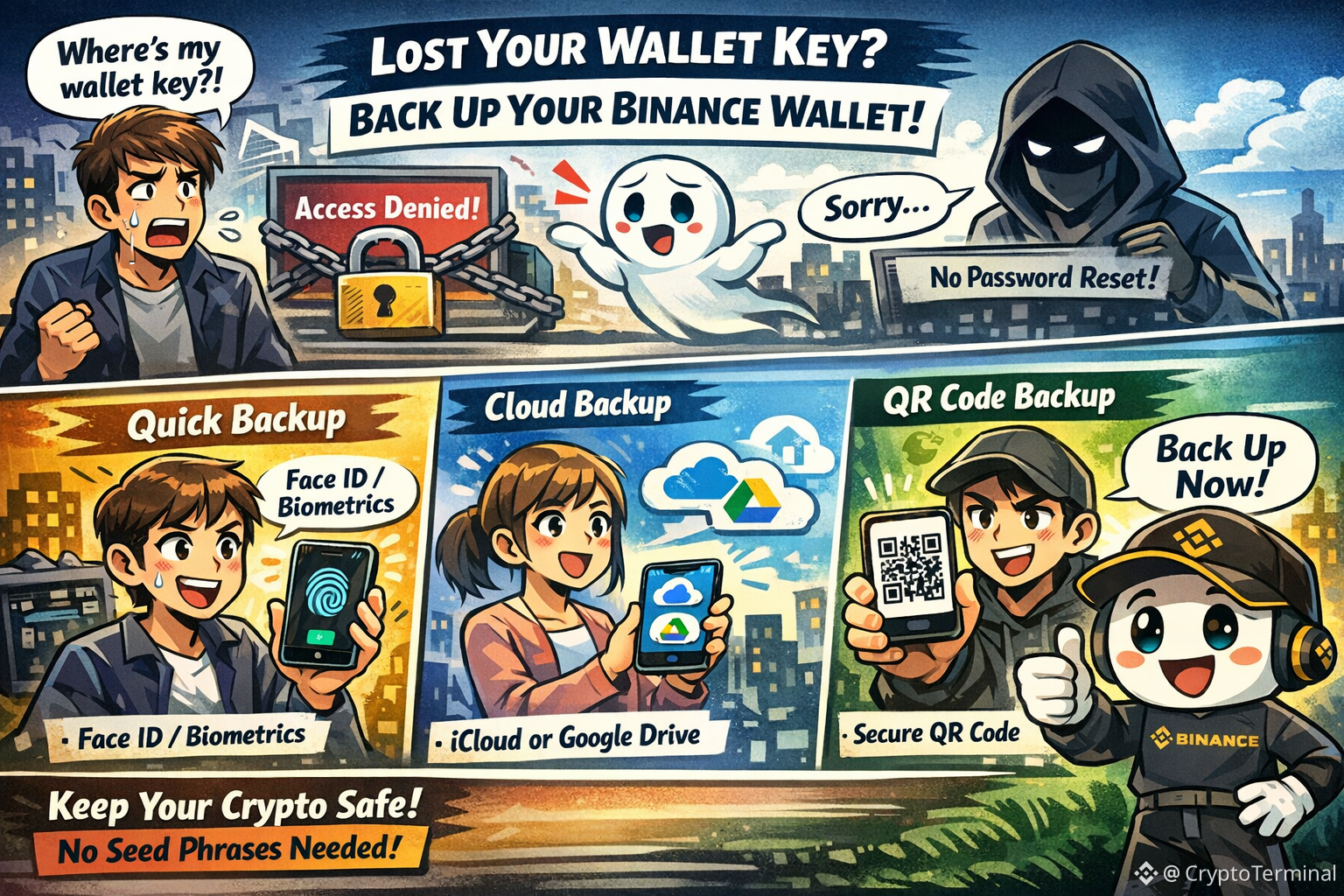
Thankfully, Binance makes it easy.
You don’t need to write down cryptic seed phrases on paper.
Instead, you can use Face ID, cloud storage, or QR code backup to securely protect your wallet access.
Let’s walk through how to do it step by step.
👉 Want the latest tips and news? Don't forget to follow us to stay updated!
How to Back Up Your Binance Wallet
There are three ways to back up your wallet:
Quick Backup
Cloud Backup (iCloud or Google Drive)
QR Code Backup
Here’s how each one works.
Method 1: Quick Backup
With Quick Backup, you can back up your wallet without a recovery password, using Binance’s security verification system.
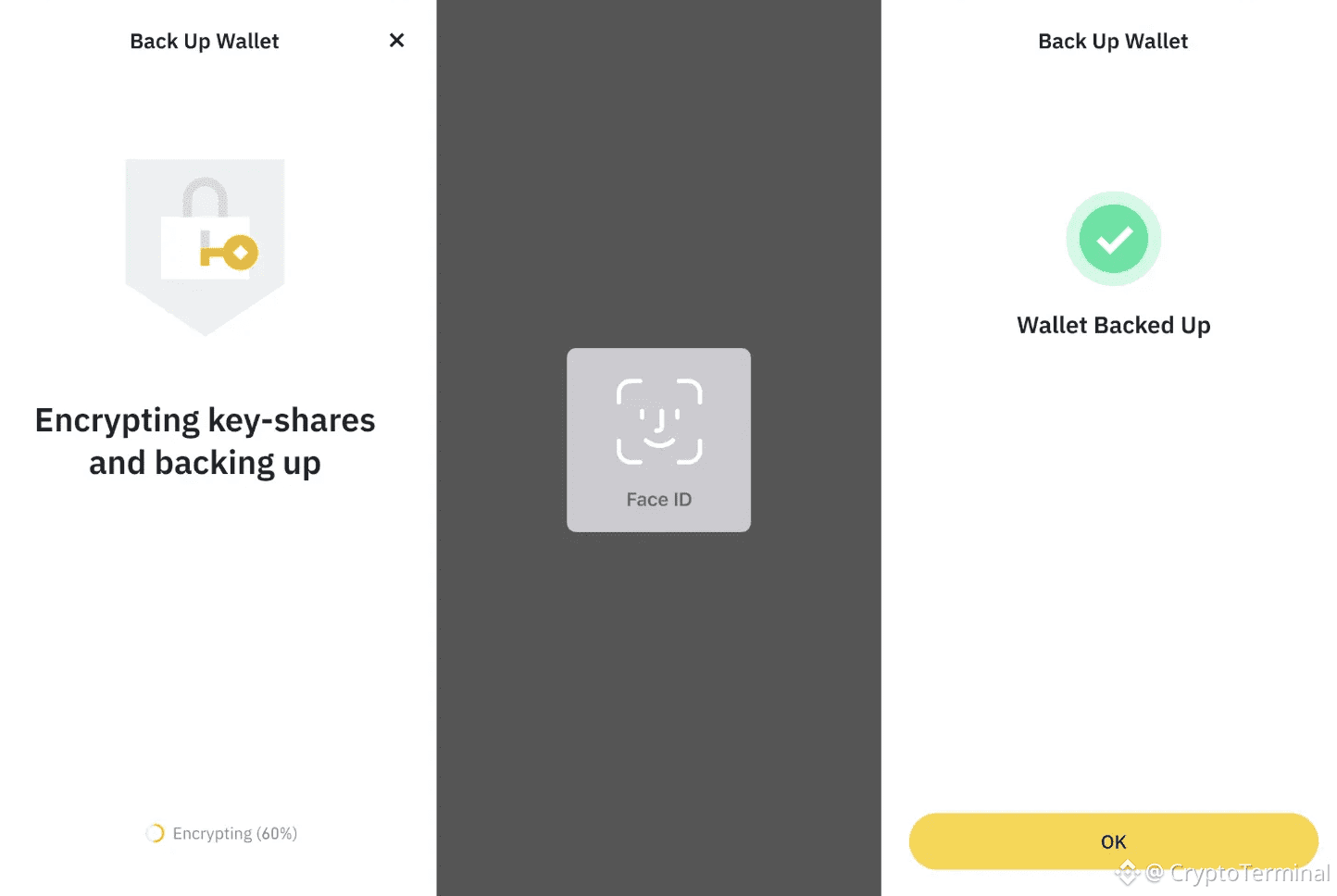
This is the easiest and most recommended method.
Select Quick Backup
Use biometric verification (like Face ID) to confirm
That’s it — your wallet is backed up and can be restored easily later
Method 2: iCloud or Google Drive Backup
This option uses cloud storage to back up your wallet securely.
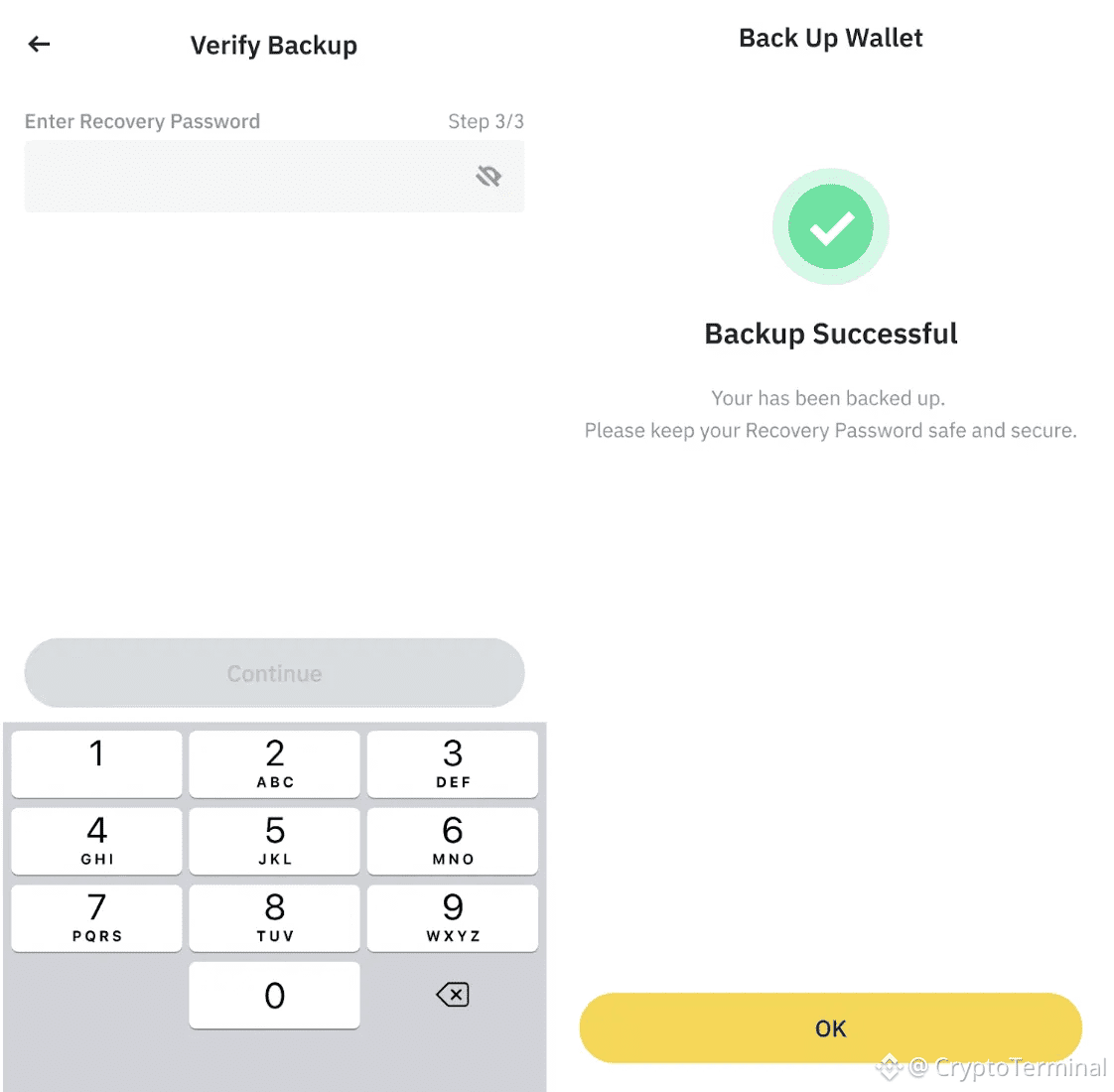
Choose iCloud (Apple devices) or Google Drive (Android)
Make sure cloud access is enabled for the Binance app
Set a recovery password and tap Continue
Read the safety tips, check the box, and tap Continue again
After backup is complete, confirm and securely store your password
⚠️ Important: If you lose your recovery password, you cannot recover your wallet.
Binance cannot retrieve it for you.
Method 3: QR Code Backup (Using Greenfield)
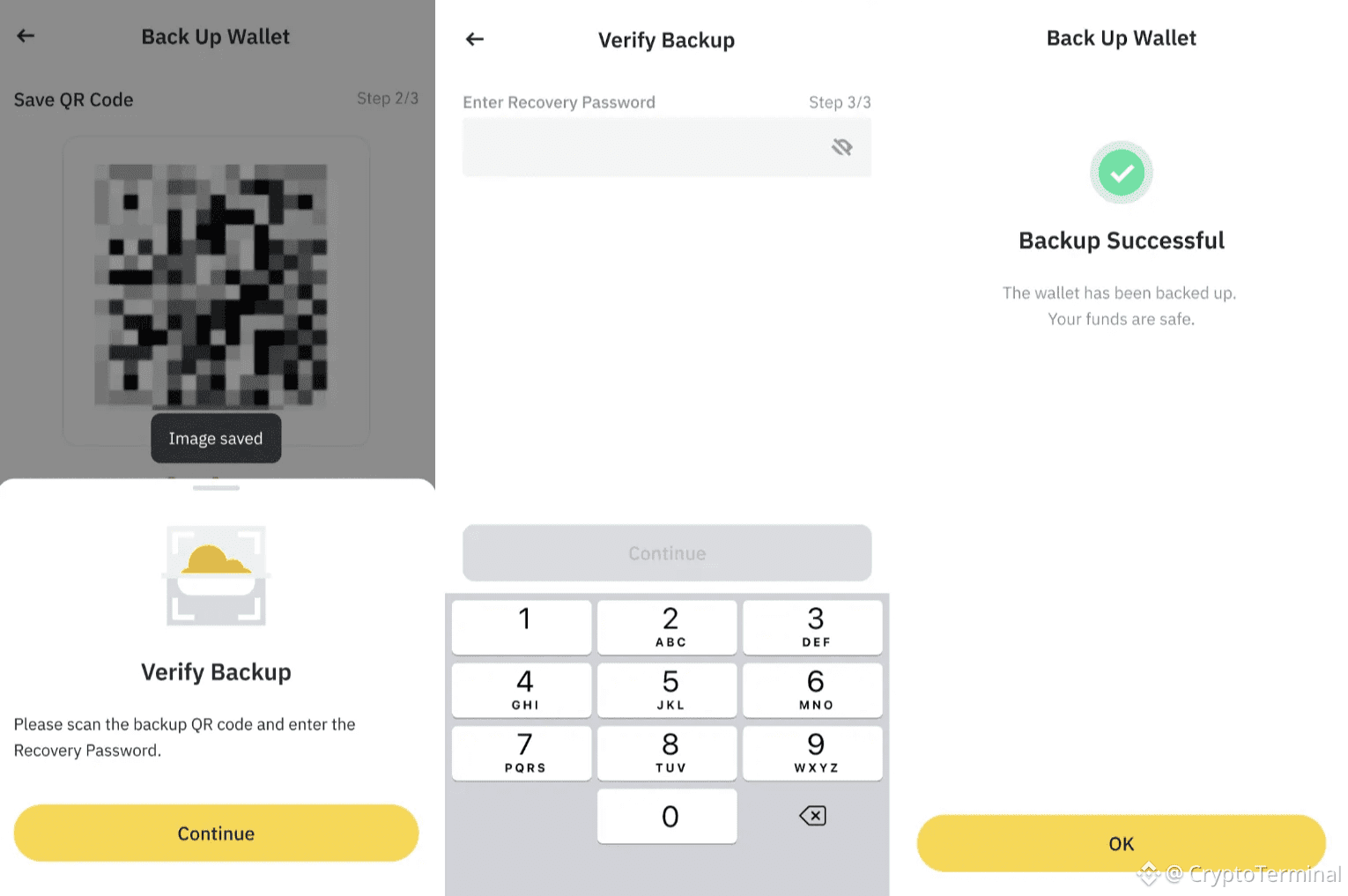
This method stores your encrypted wallet key via a QR code in a decentralized cloud platform called Greenfield.
Select QR Code Backup
Set your recovery password and continue
Read the safety notice and confirm
A QR code will be generated — save it securely
To verify, scan the QR code and enter your recovery password
Even if someone gets your QR code, they cannot access your wallet without both your Binance account and recovery password.
How to Confirm Your Wallet is Backed Up
Go to the Home or Assets tab
Tap the Settings icon (top left)
Tap Wallet Management
If your backup was successful, you’ll see a Backed Up label on your wallet
Can You Re-Back Up Your Wallet?
Yes, you can re-back up at any time.
Go to Wallet Management
Tap the edit (pencil) icon
Tap Backup Management
Choose a backup method and select Back Up Again
You can create a new QR code or reset your recovery password to re-secure your Web3 wallet.
👉 Want the latest tips and news? Don't forget to follow us to stay updated!